A dashboard from your data without leaving Excel
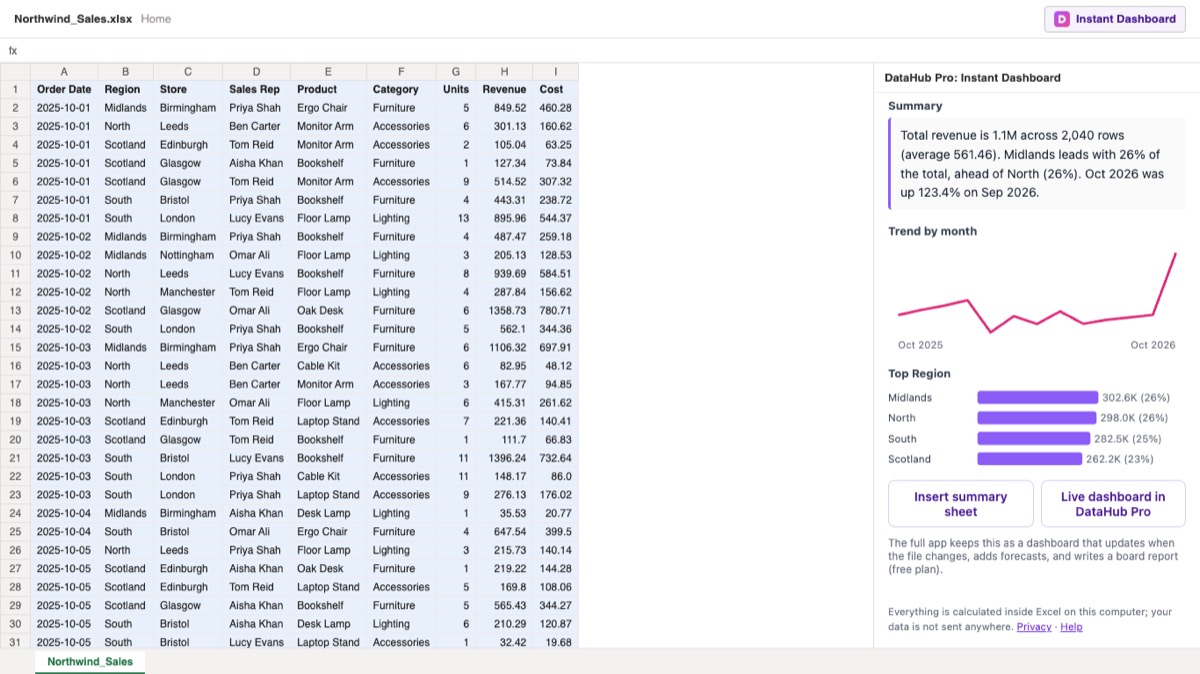
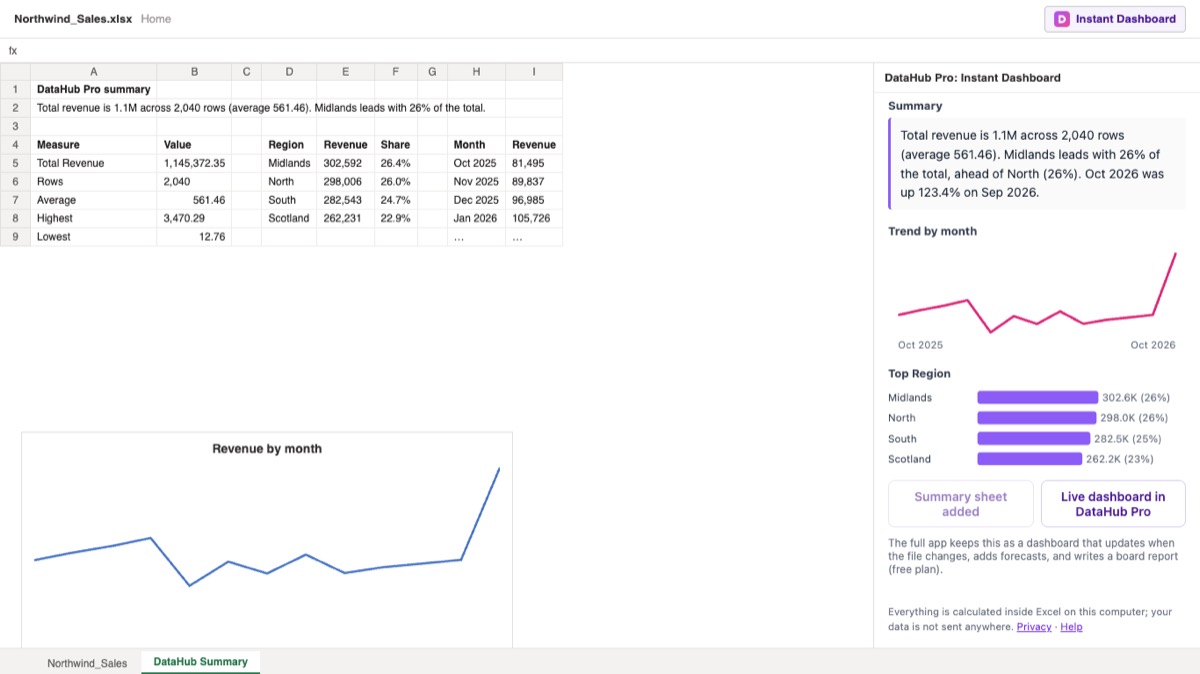
Instant Dashboard is a free Excel add-in. Select a table and it shows the total, the trend by month, the top categories and a plain-English summary in a side panel, then adds them to your workbook as a summary sheet with a native chart. It runs entirely inside Excel.
How it works
Three steps, and none of them leave the workbook.
1. Select your data
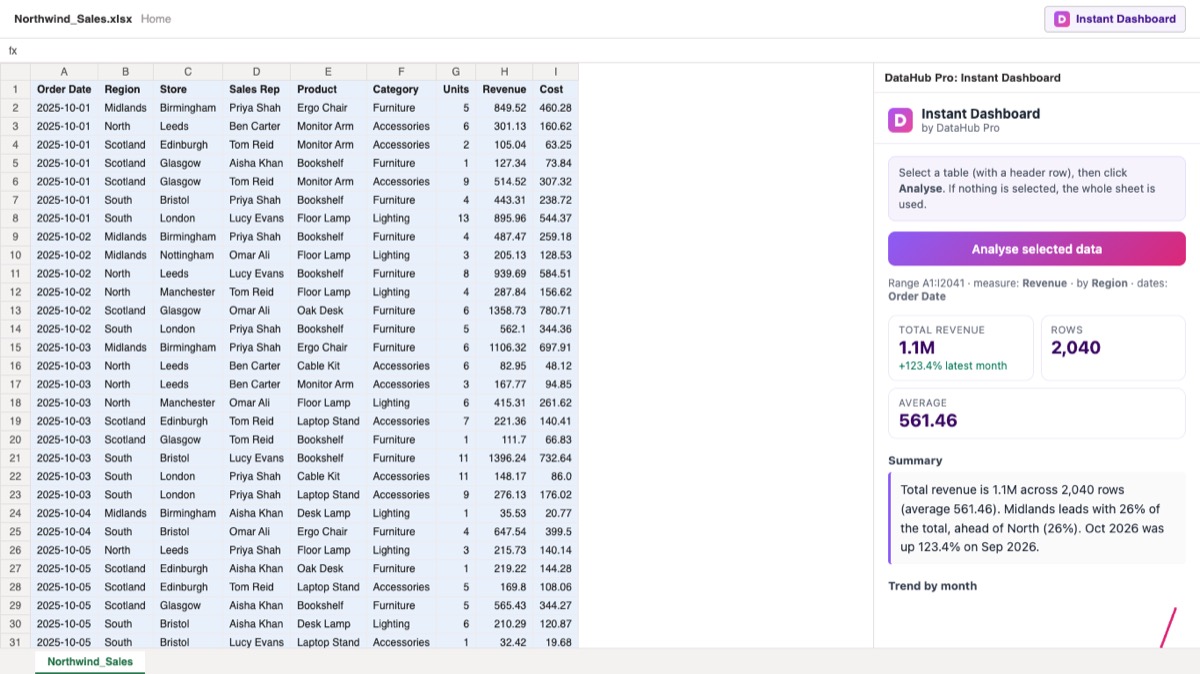
Click inside a table with a header row, or select the rows you want. Nothing selected means the whole sheet.
2. Click Instant Dashboard
The button sits on the Home tab. The pane works out the measure, the categories and the dates on its own.
3. Read it, or insert it
Totals, the latest month against the one before, the top categories and a trend line, with a written summary. One click adds it as a summary sheet with a native Excel chart.
Add it to Excel
The add-in is on its way to Microsoft AppSource, the store inside Excel. Until it is listed there, it takes about a minute to add from its manifest file:
Excel on the web
Download the manifest. In Excel, open Home › Add-ins › More Add-ins, choose My Add-ins › Upload My Add-in and pick the file. The Instant Dashboard button appears on the Home tab.
Excel for Windows or Mac
Upload it once in Excel on the web with the same Microsoft account, or ask your Microsoft 365 admin to deploy the manifest to your organisation from the admin centre (Settings › Integrated apps › Upload custom apps). It then appears under Home › Add-ins.
When you want more than a summary
The add-in answers “what does this sheet say?” The DataHub Pro app keeps the answer: upload the same workbook and you get a dashboard that updates when the file changes, forecasts, anomaly alerts, and a board-ready report you can share as a link or PDF. There is a free plan, and no card is needed to start.
Support
Something not right? Email hello@datahubpro.co.uk with the subject “Excel add-in”, your Excel version and what you selected. A person replies within one business day.
“No numeric column found”
The add-in needs at least one column of numbers. Numbers stored as text (often from a CSV) do not count: select the column and use Data › Text to Columns › Finish to convert them.
No trend by month
The trend needs a date column. Dates stored as text are read when they look like 2026-10-31; for other text dates, convert the column to real Excel dates first.
The button is missing
Check Home › Add-ins for Instant Dashboard. If you uploaded the manifest in Excel on the web, sign in to the desktop app with the same Microsoft account and restart Excel.
Removing it
Open Home › Add-ins › More Add-ins › My Add-ins, click the three dots next to Instant Dashboard and choose Remove. It stores nothing, so nothing is left behind.
Questions
Is the add-in free?
Yes. The add-in is free and needs no account. The DataHub Pro app has a free plan too, for when you want a dashboard that stays up to date.
Does my data leave Excel?
No. Every number is calculated inside Excel on your computer. The add-in sends nothing to our servers and stores nothing.
Which versions of Excel does it run in?
Excel for Windows and Mac (Microsoft 365, 2016 or later) and Excel on the web.
How does it choose what to add up?
It looks for a column named like revenue, sales, amount or total; otherwise it uses the numeric column with the largest total. Dates are recognised from the cell format or ISO text, and the text column with a manageable number of values becomes the breakdown.
What does the summary sheet contain?
A new sheet called DataHub Summary with the written summary, a table of totals, the top categories with their share, the month-by-month series and a chart built from it. Your original sheet is never changed.
Keep the dashboard, not just the summary
Upload the workbook to DataHub Pro and it stays up to date when the file changes.
Microsoft, Excel and AppSource are trademarks of the Microsoft group of companies. DataHub Pro is not affiliated with Microsoft.